Workshop Setup
Create a repository from the prepared template, create a Codespace, verify the required tools, and inspect the completed stacked-PR reference.
Complete this preparation step before starting the SupportHub feature stack. Create your own repository from the prepared template; do not make changes in this workshop website repository or in the completed reference repository.
Create your workshop repository
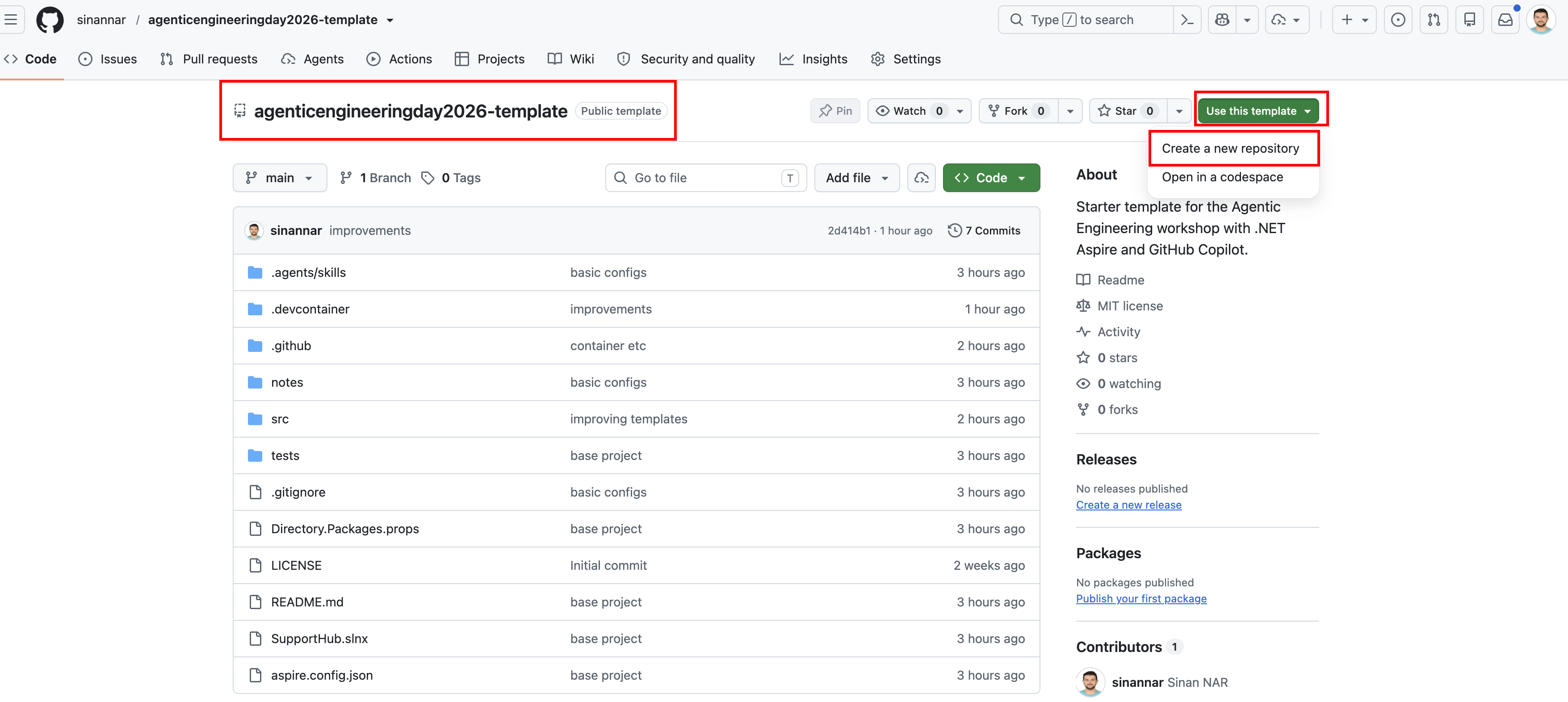
- Open agenticengineeringday2026-template.
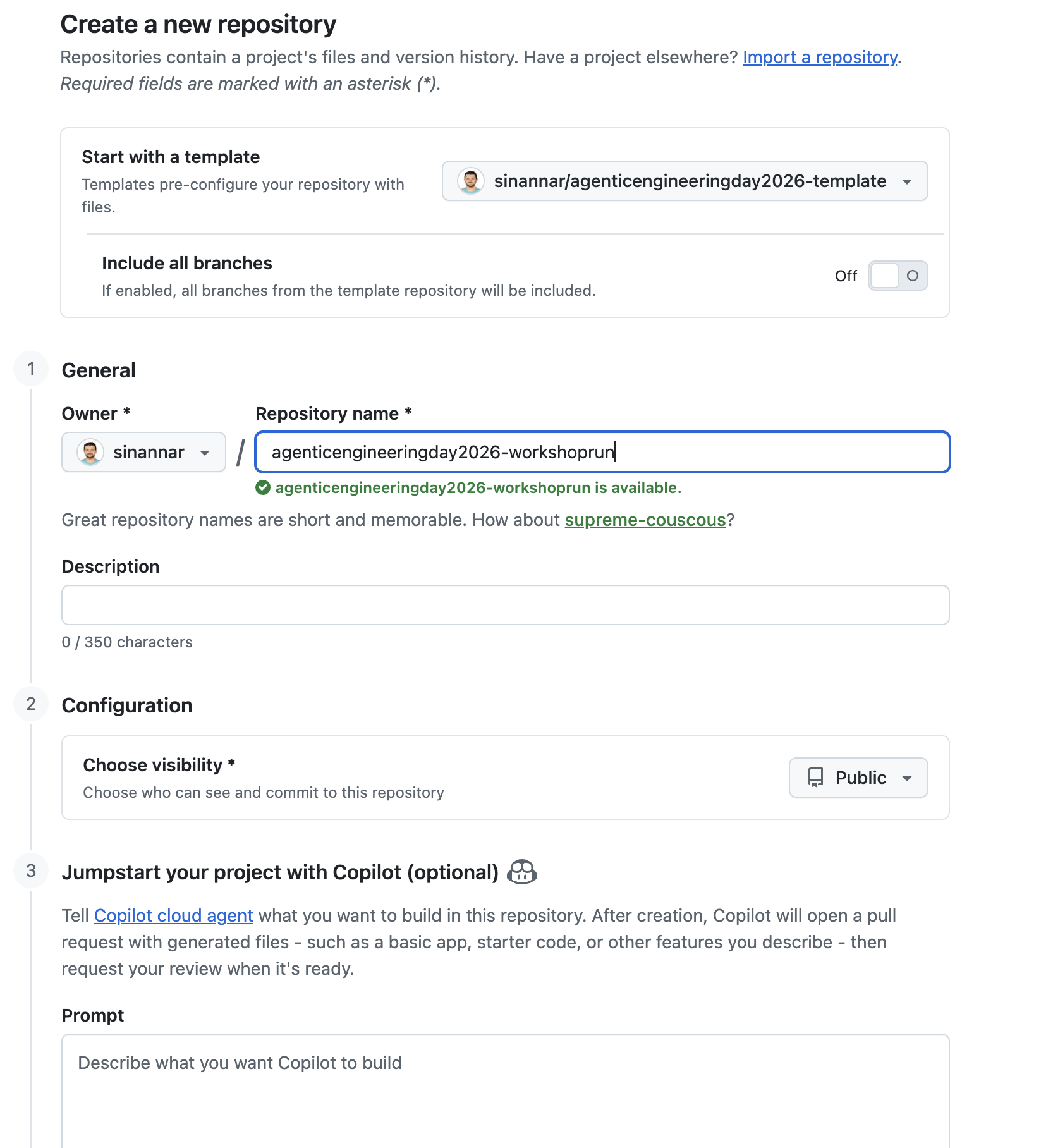
- Open Use this template and choose Create a new repository.
- Choose a repository name, then create the repository under your GitHub account.
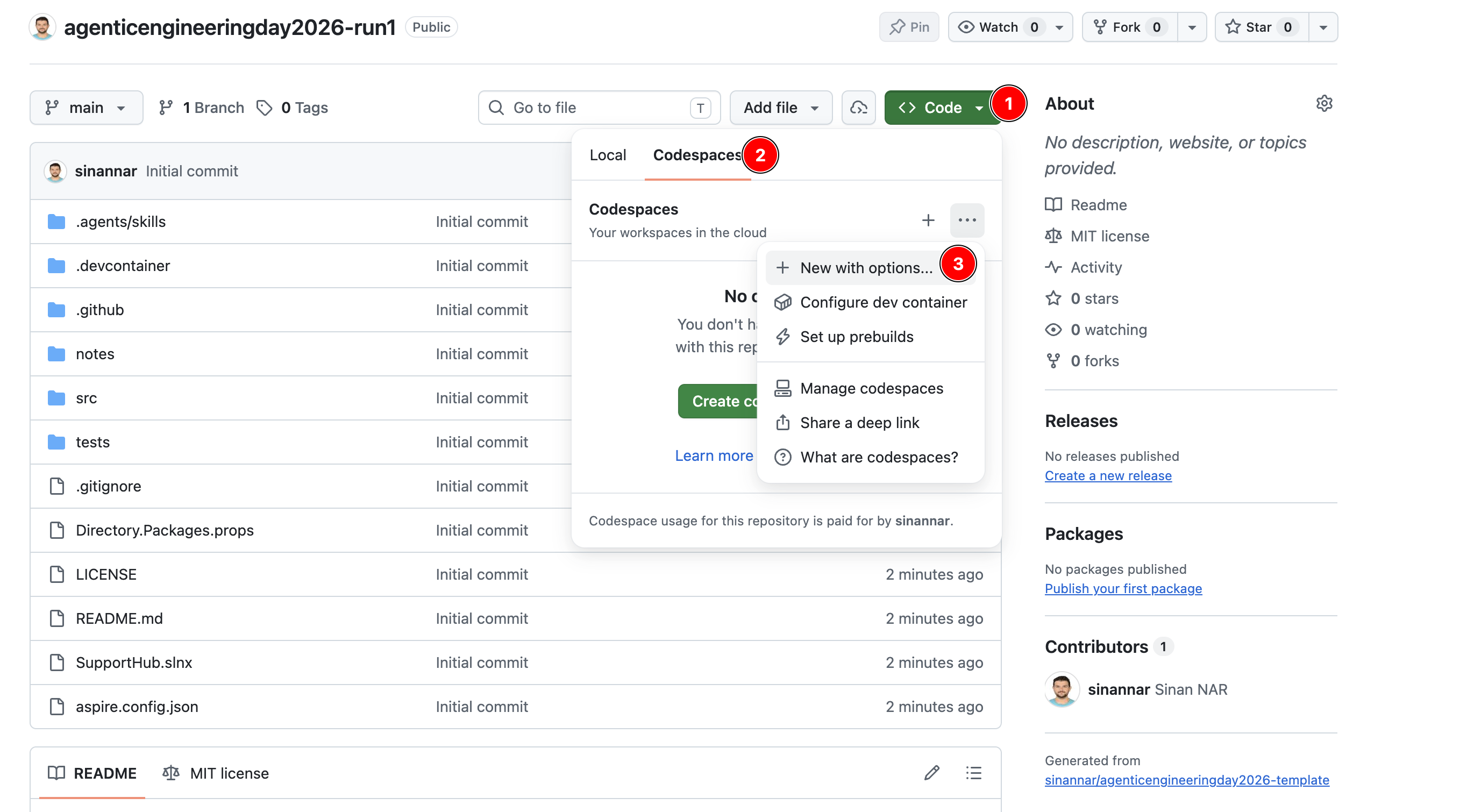
- Open your new repository and use its Code menu to create a Codespace.
Create a Codespace
- In your new repository, open Code, switch to Codespaces, and choose New with options….
- Create the Codespace from your repository's
mainbranch. - Choose a machine with at least 4 cores. An 8-core machine is preferred for the distributed application, local infrastructure emulators, builds, and tests.
- Create the Codespace and wait until the dev container finishes starting and the terminal is available. Do not run workshop commands while the container is still configuring.
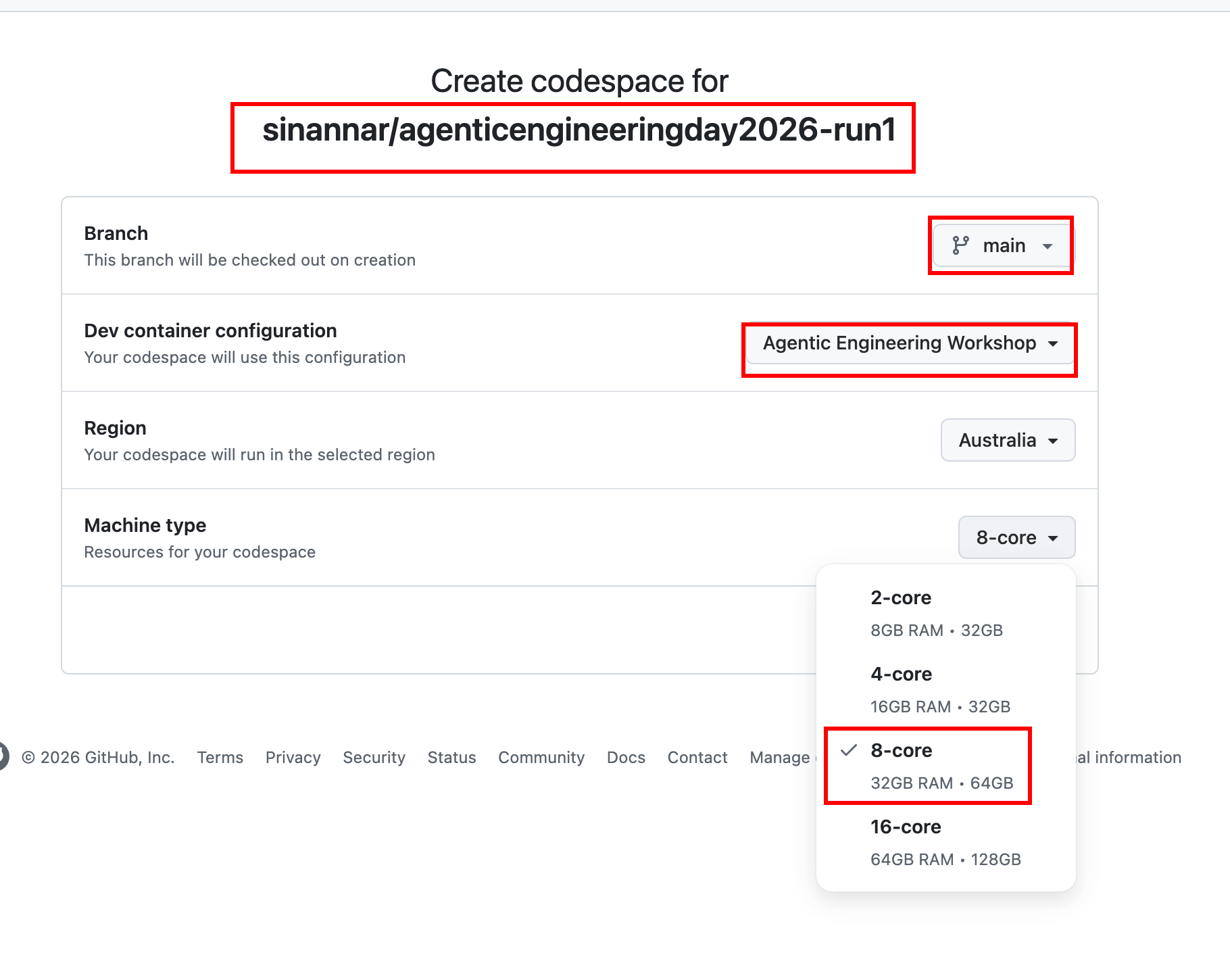
main branch, the workshop dev container, and a machine with at least four cores.Verify the environment
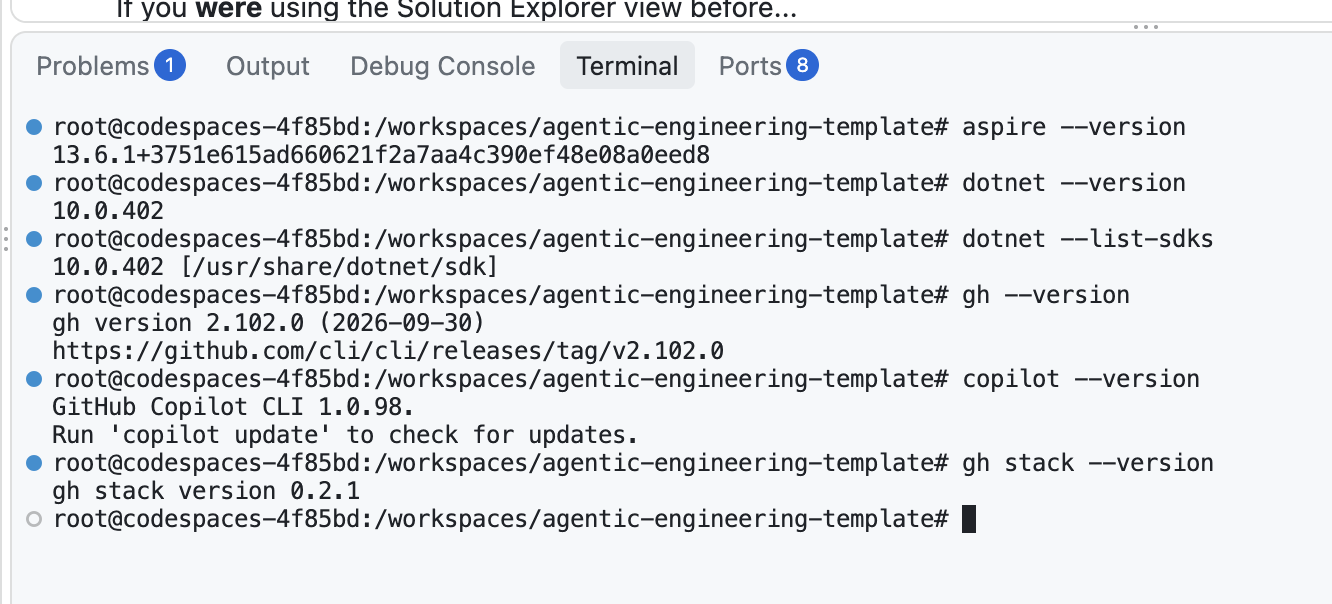
In the Codespace terminal, run each command and confirm it returns version information:
aspire --version
dotnet --version
dotnet --list-sdks
gh --version
copilot --version
gh stack --version
The prepared environment is expected to include the Aspire CLI, a .NET SDK,
GitHub CLI, GitHub Copilot CLI, and the gh stack extension. If a
command is missing or fails, stop and fix the Codespace setup before continuing;
do not substitute a local installation.
Start the application
From the repository root in the Codespace terminal, start the Aspire application:
aspire start
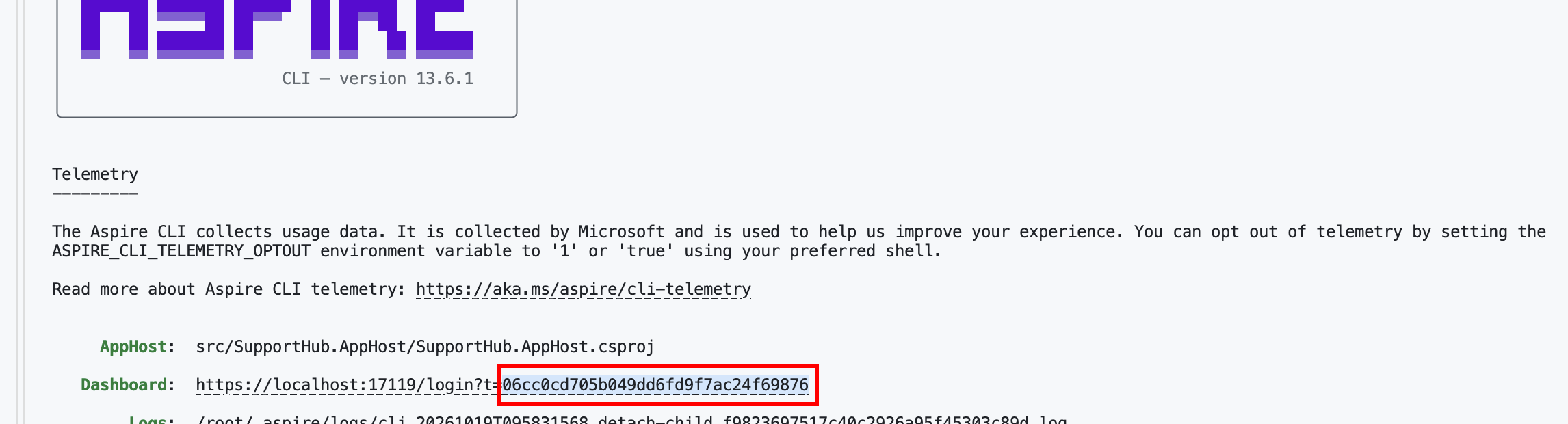
Aspire prints a Dashboard login URL containing a secret in its
t query parameter. Copy that secret locally. It is required if
you open the Dashboard through a forwarded port. Treat it as a credential:
do not commit it, paste it into an issue, or share it in chat.
Confirm application health
Wait for the distributed resources to start, then run:
aspire describe
Continue when the required application services and infrastructure resources
report Running and Healthy. The interactive
supporthub-cli resource can remain NotStarted
until you intentionally launch it.
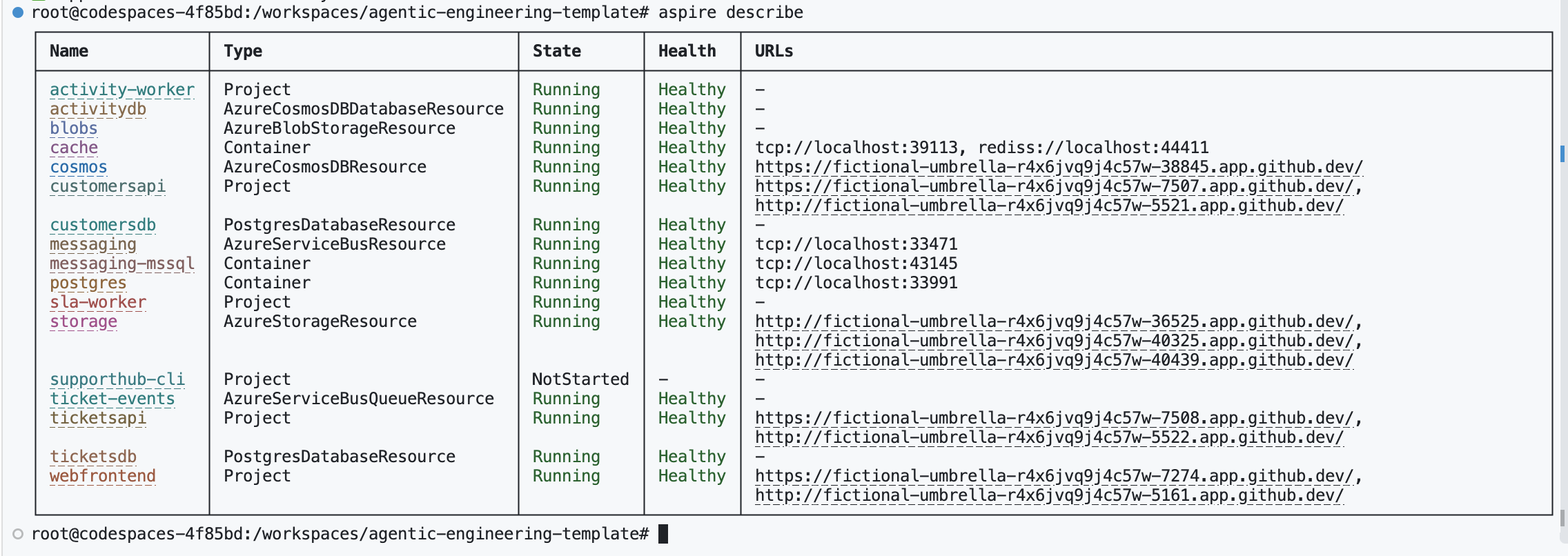
aspire describe to wait for the expected resources to become healthy.Open the Aspire Dashboard
Alternatively, open the Codespaces Ports panel, locate
aspire-dashboard-https (17119), and open its forwarded address.
When the Dashboard asks you to sign in, paste the secret you copied from the
aspire start output.
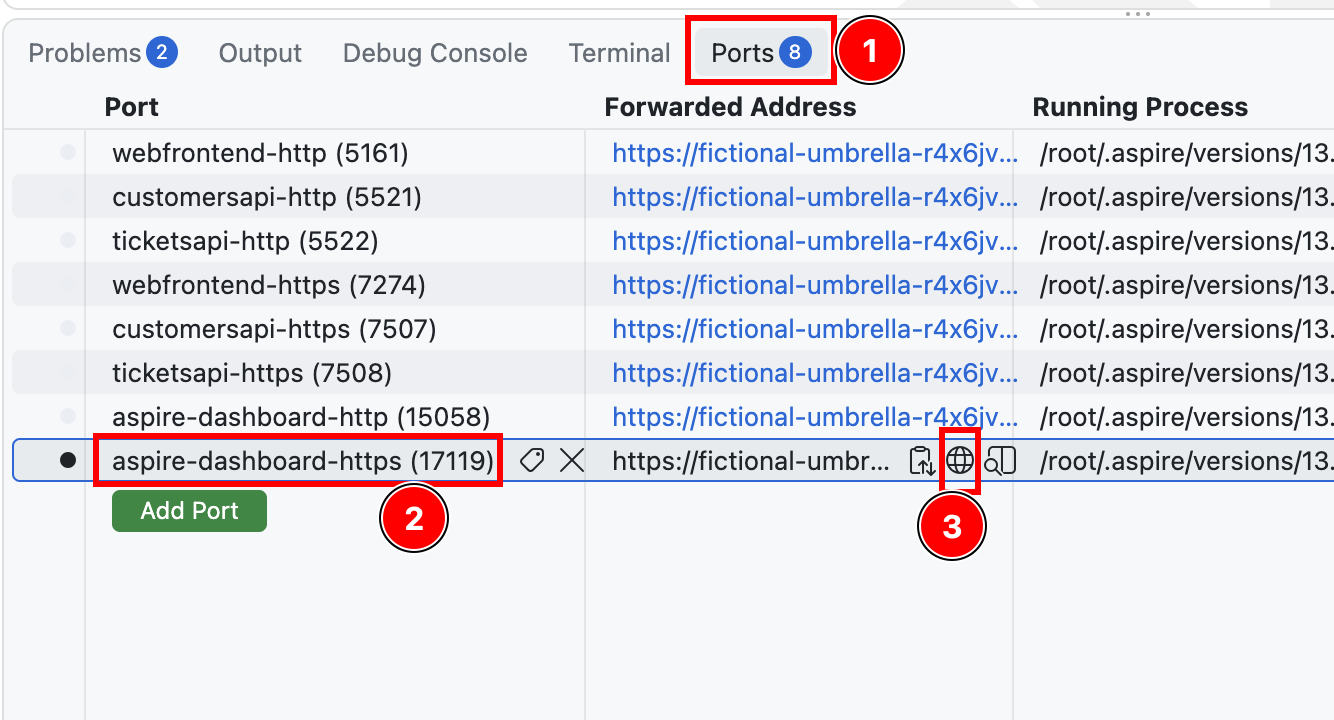
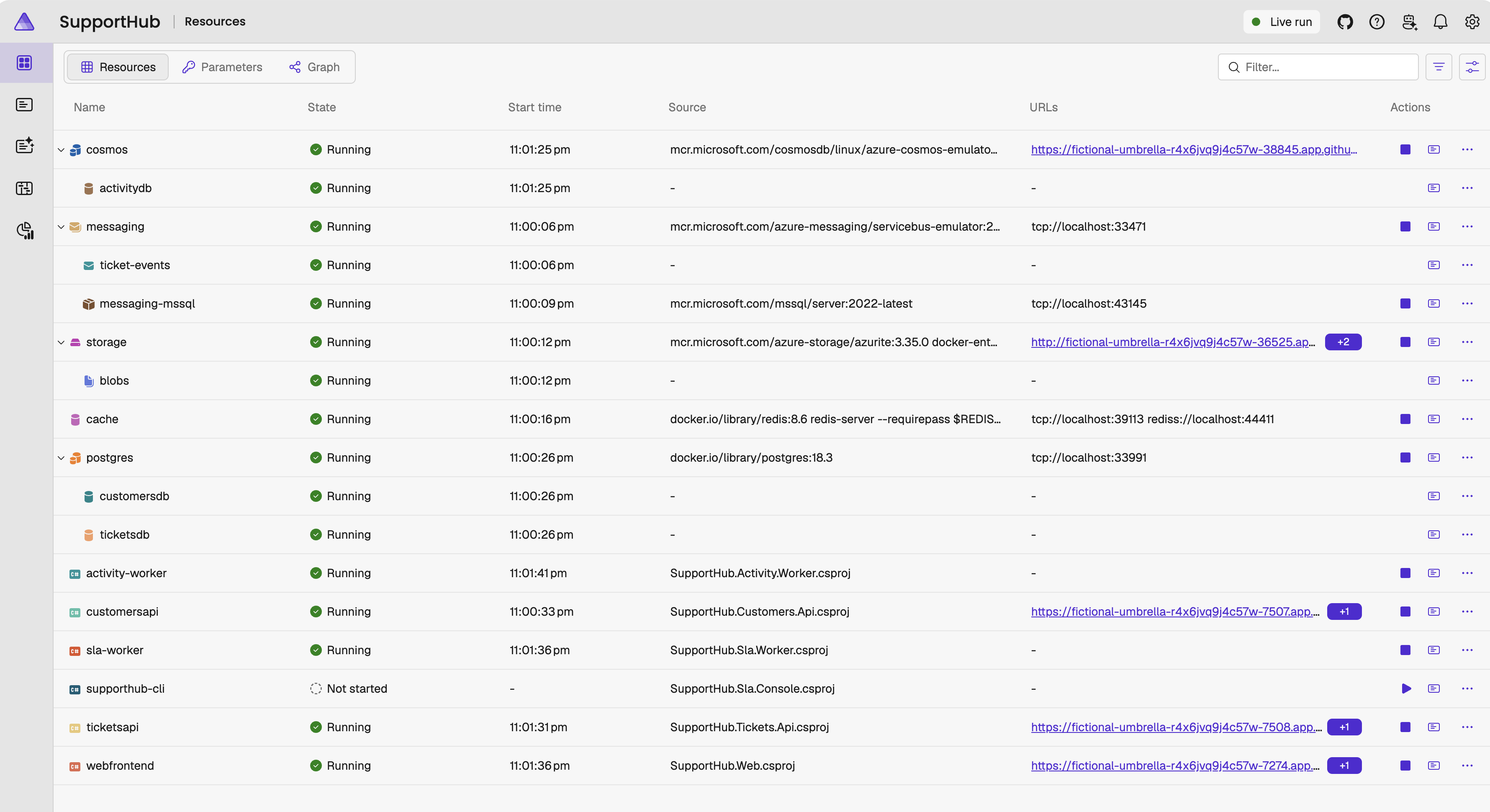
aspire-dashboard-https (17119).A successful dashboard shows the SupportHub resources and their current states. Use it throughout the workshop to inspect resource health, logs, traces, and endpoints.
Open the Blazor frontend
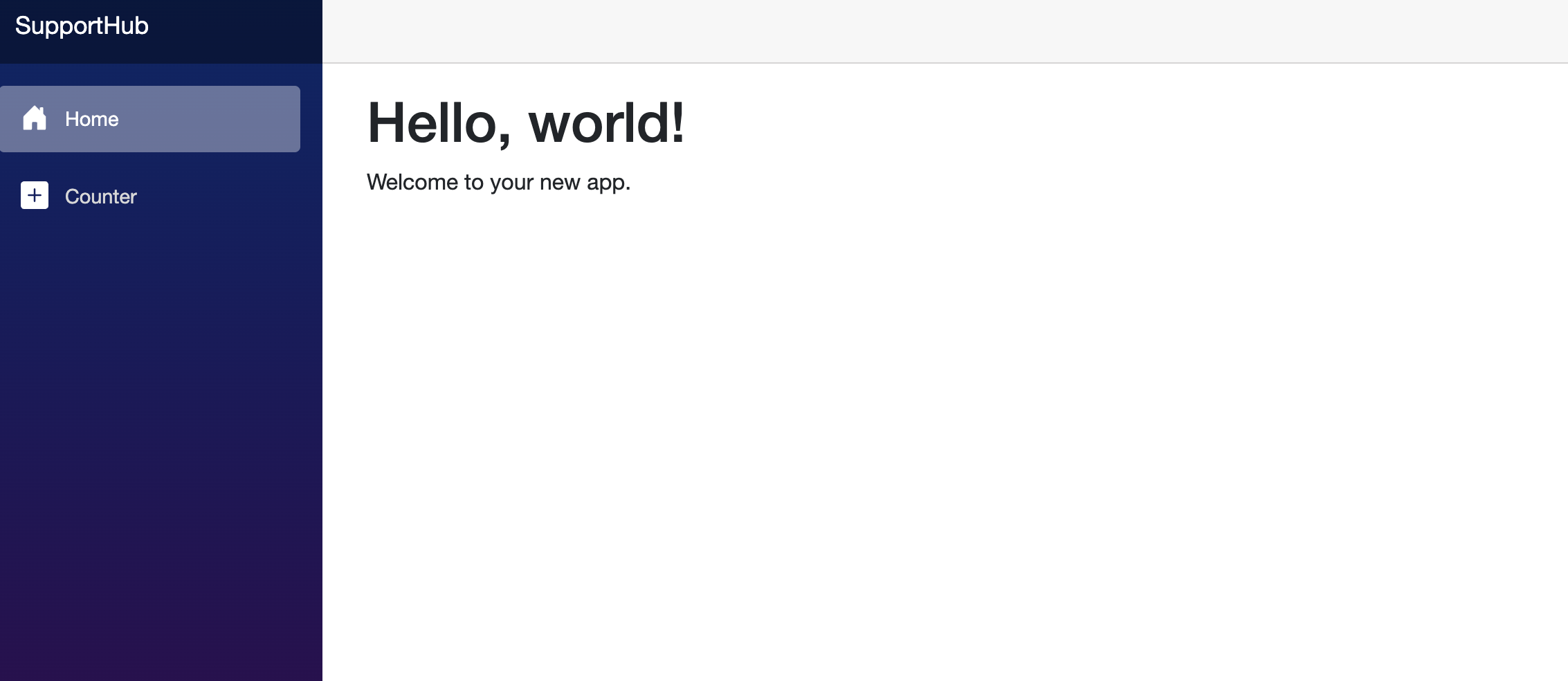
In the Codespaces Ports panel, locate webfrontend-https (7274) and open its forwarded address. This confirms that the Blazor frontend is reachable through Aspire and Codespaces port forwarding.
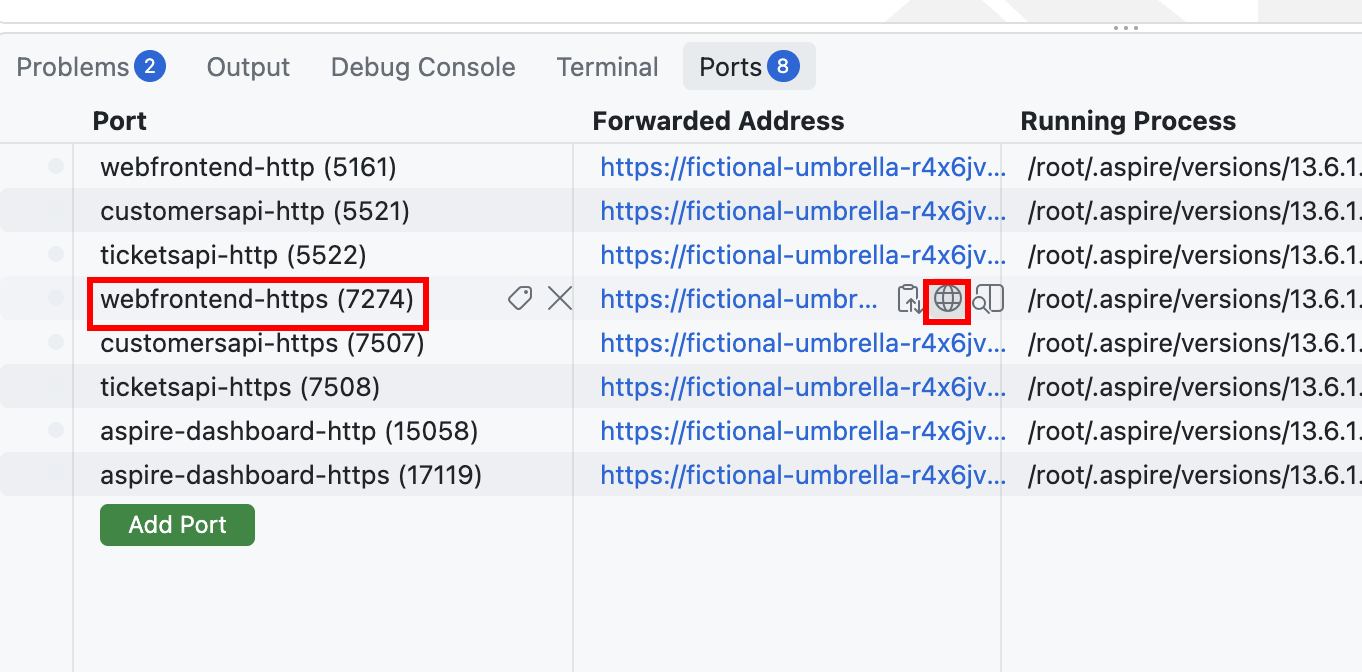
webfrontend-https (7274).A successful navigation displays the default SupportHub Blazor page with the Home and Counter navigation items. The workshop feature steps replace this baseline presentation incrementally.
Inspect the completed stacked PRs
The agentic-engineering-experiment repository is the completed reference. Its stacked pull requests are intentionally still open so you can inspect their order and parent relationships.
Open its pull requests
and use GitHub's stack indicator to inspect the sequence. The reference stack
starts with feature/customers targeting main, continues
through feature/tickets, feature/attachments,
feature/activity, feature/sla,
feature/dashboard, and feature/ui-ux, with a
devcontainer pull request on top.
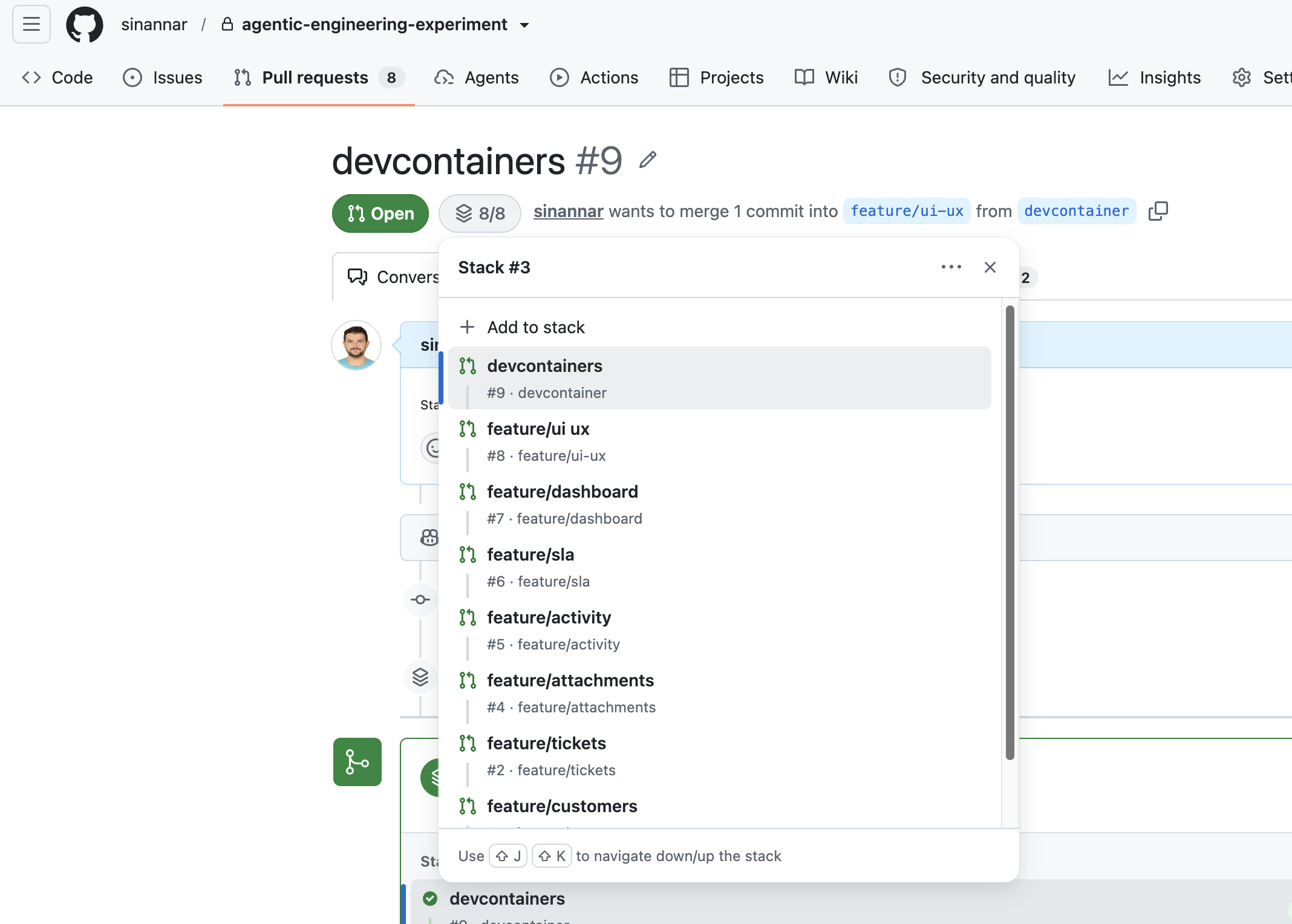
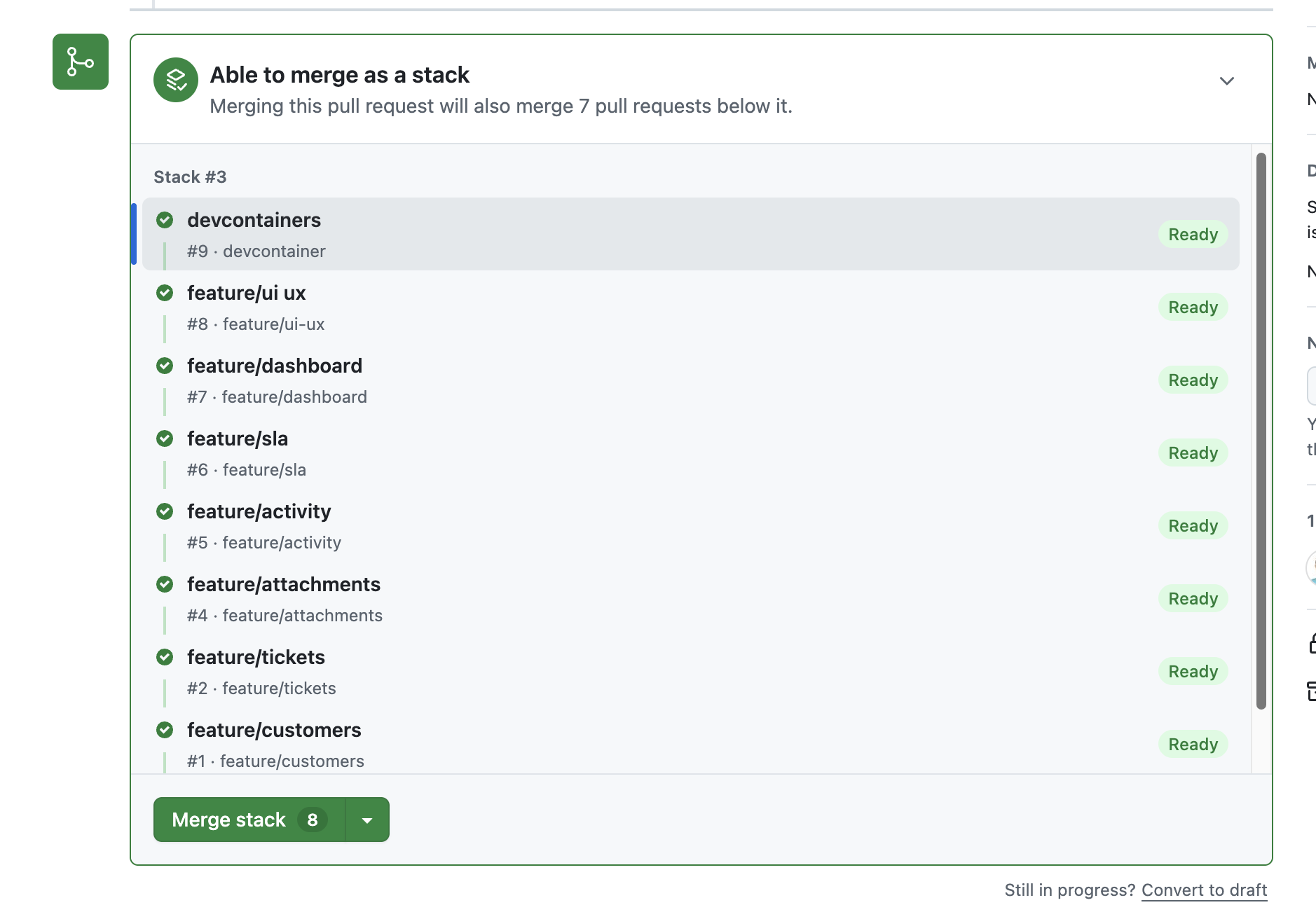
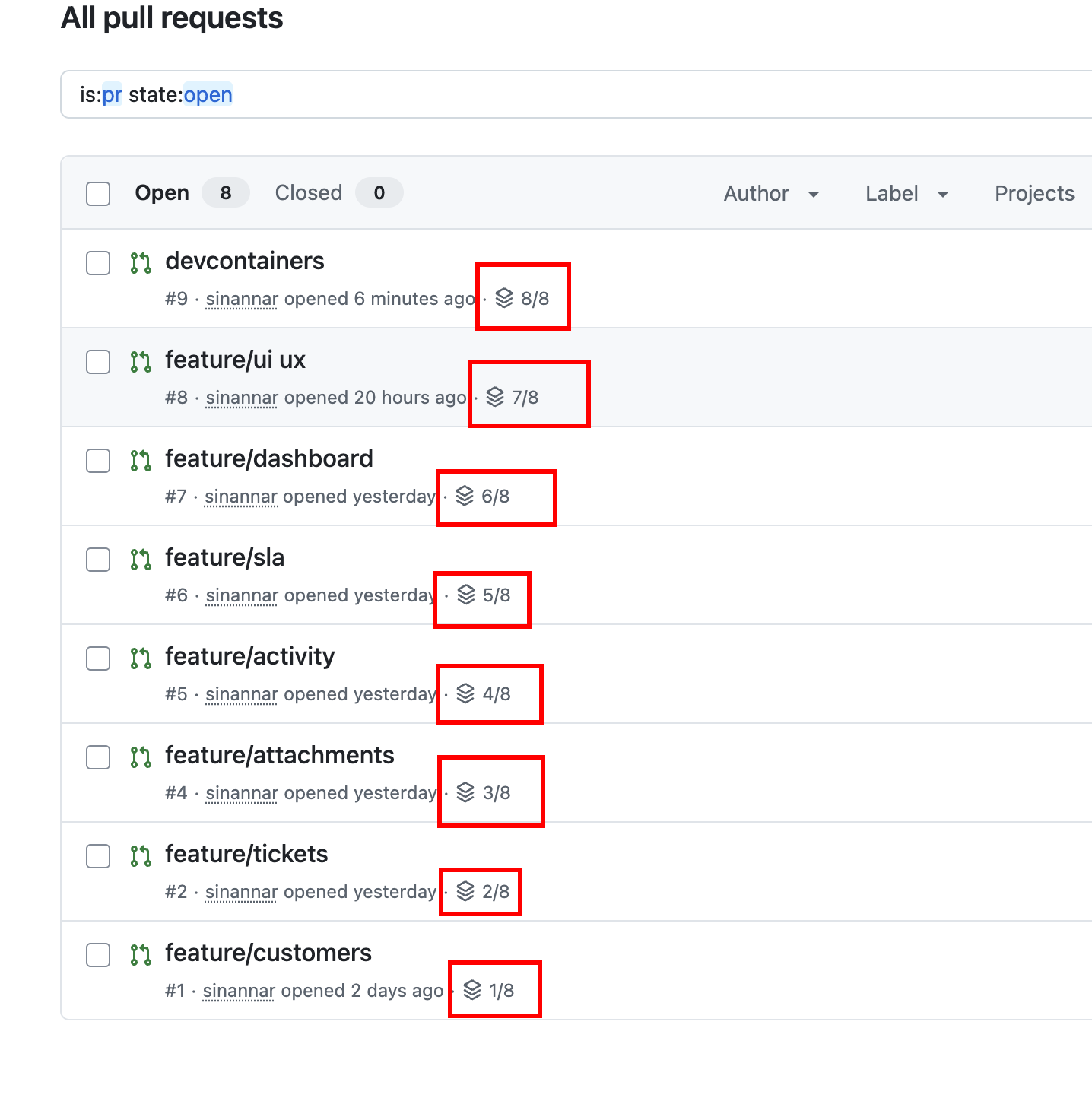
Use the reference to understand the stack only. Do not merge, close, edit, or push to its pull requests. Return to your workshop repository and continue to Customer Management.
Final goal
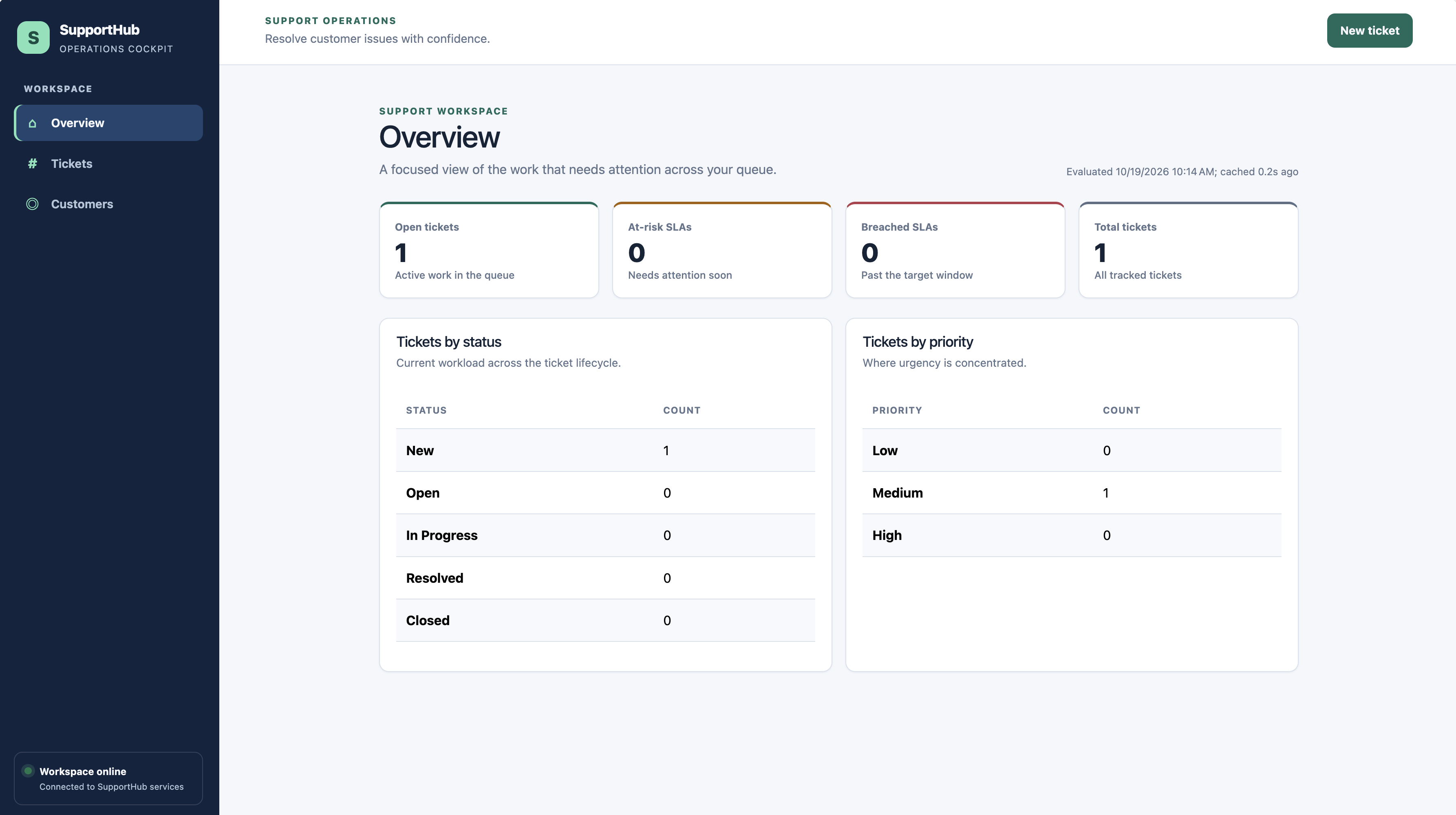
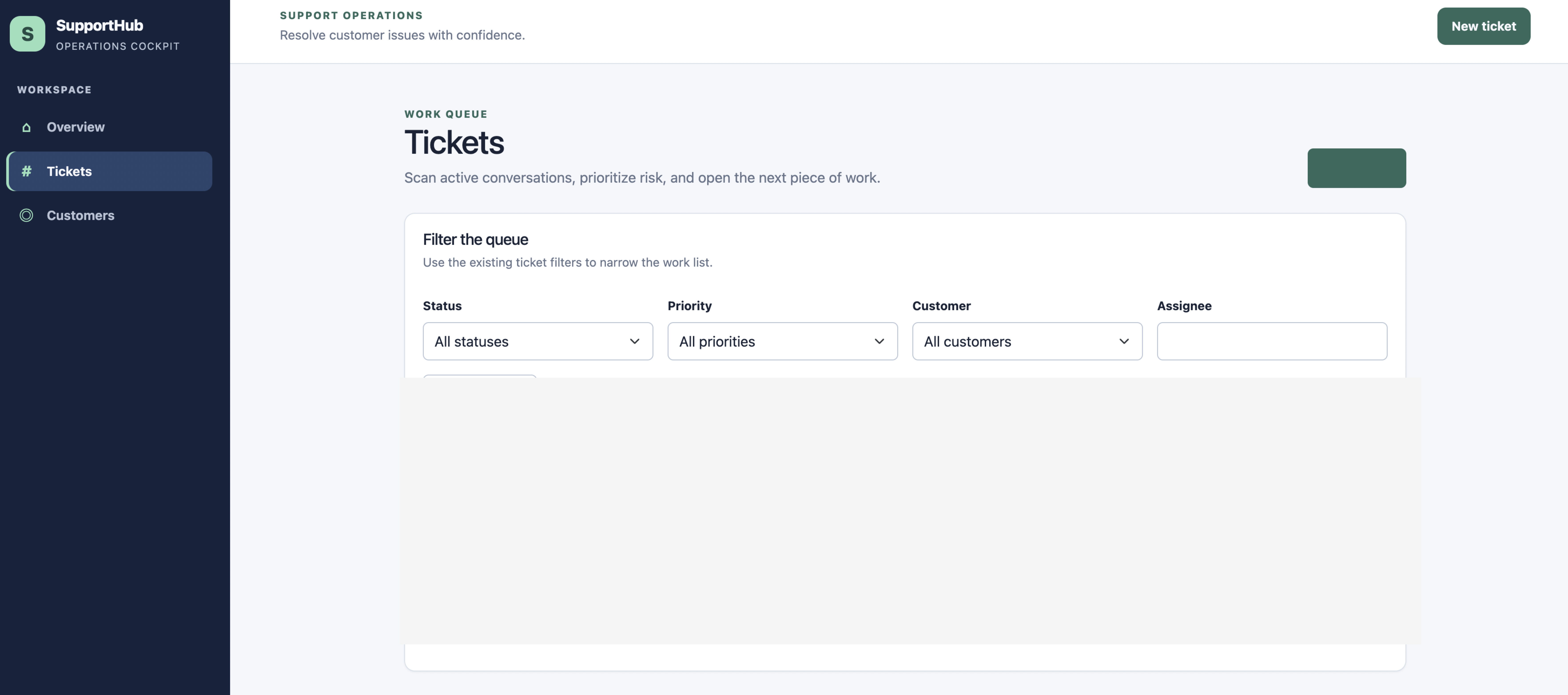
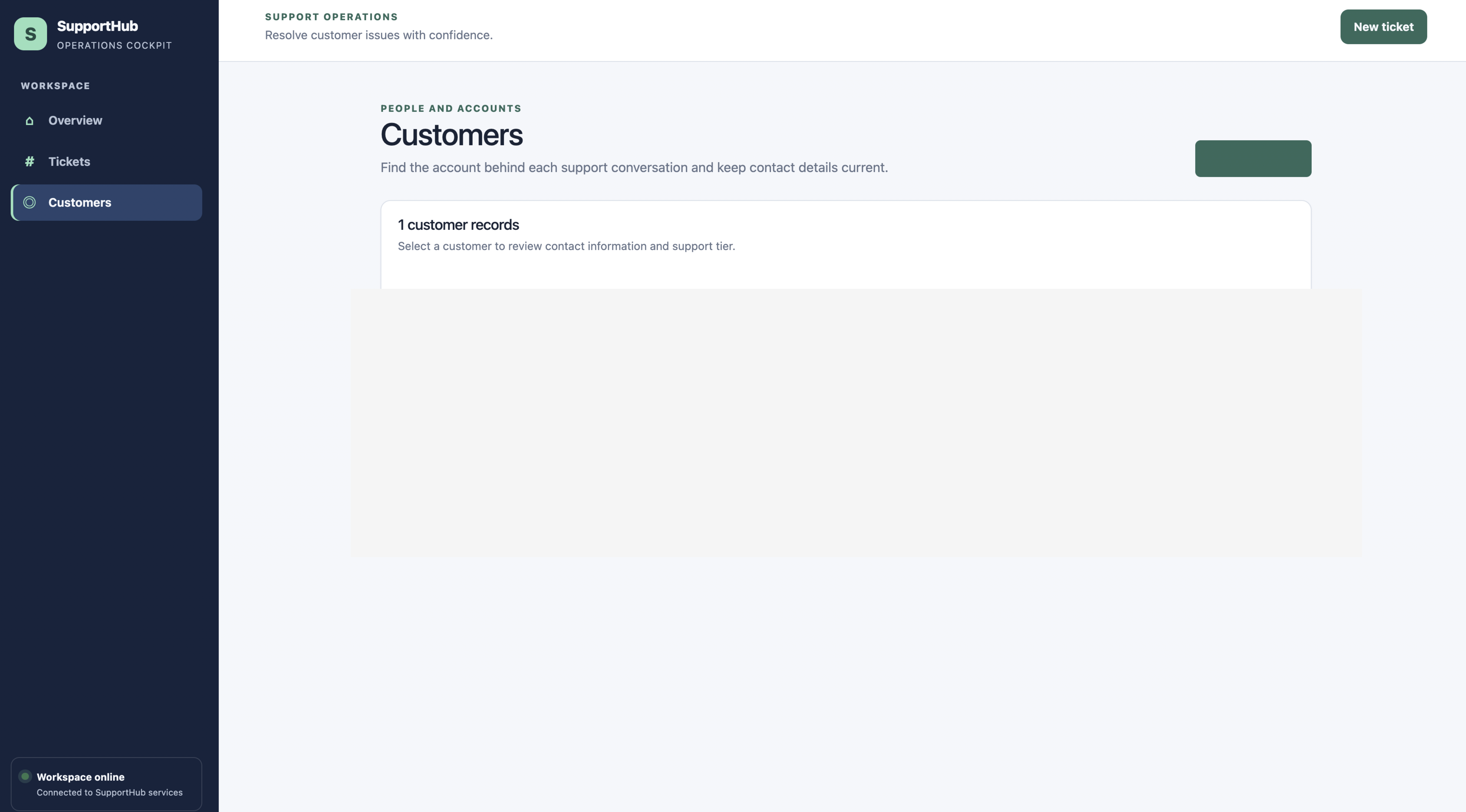
By the end of the seven feature steps, your workshop repository should be a working SupportHub ticketing system: a focused operations dashboard, a filterable ticket queue, and customer records that support the work in that queue.
The screens below show the intended end state. Customer and ticket record data has been redacted; use your own test data while completing the workshop.